
Create a Photo Collage | Digital or using prints | Valentine Day |
For Today’s Valentine’s prep create a digital photo collage that tells a story, captures a vibe, or highlights a theme. Here’s a practical guide you can use right away, plus ready-to-use ideas.
The Basics:
Have a Purpose: Decide what the collage should convey. A memory? A mood? Pick what idea you want to share with the collage.
Choose a Format: Pick the size for the collage. A size that your printer can print makes collaging and framing easiest.
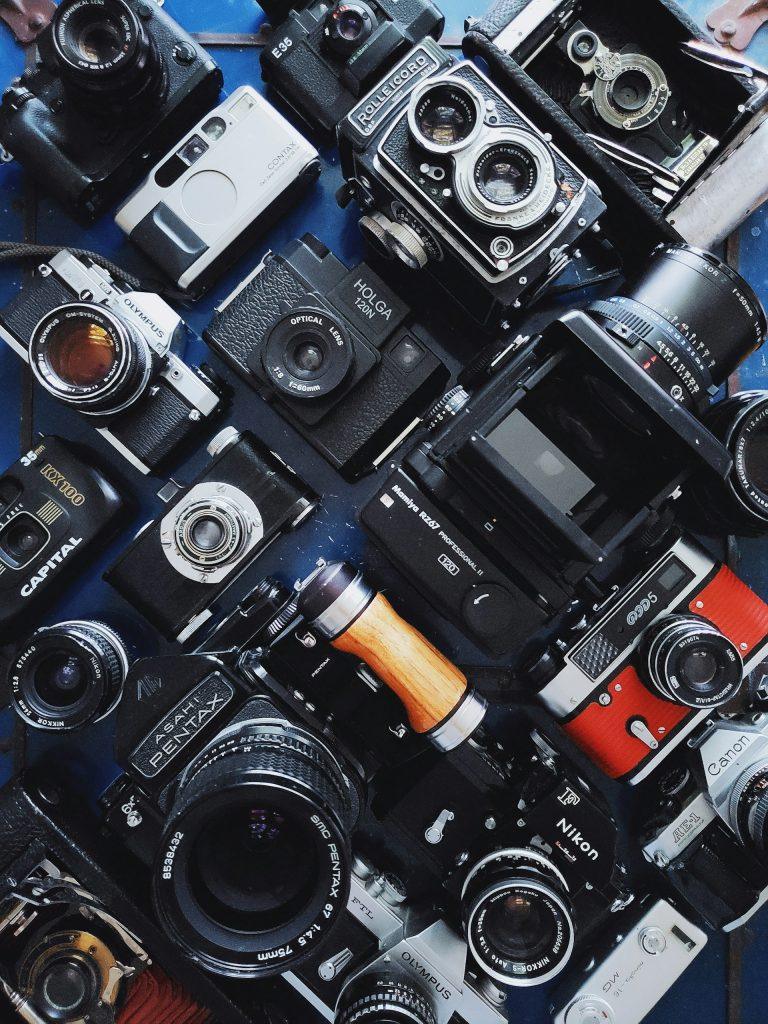
Mix photos to have a variety: Mix the types of photos you are using -wide, medium, close-up. Include both people and context to balance the collage.
Be Cohesive: Use a limited color palette or a single filter, if you are making a digital collage, to make images feel connected.
Text placement: Add a short caption or date if it helps tell the story, but don’t overdo it unless text is part of the collage.
Photo selection tips
8–15 photos is a good starting range for many templates; fewer for a bold, simple look, more for a full narrative. Include:
1 main image
3–5 supporting images that add context or contrast
2–6 detail shots (textures, objects, places)
Make sure to have a Balanced number of people, places, and things in the photographs to avoid a photo‑heavy collage that feels lopsided.
Choose at least one wide establishing shot and one close‑up or candid moment for the collage.
Check variety in lighting and color to avoid a jarring collage. For examples look at Pintrest or Adobe Express.
Layout ideas
Grids: Equal-sized images in a clean grid; good for social posts.
Main photo and a grid: One large center photo with smaller images radiating around it.
Timeline strip: A horizontal or vertical line of images that tells a chronological story.
Overlay and caption: One image with a semi-transparent color wash and a short caption/date. Easy to create with a digital file.
Design and editing tips
Aspect ratio: Decide early (square for IG posts, 4:3 or 16:9 for prints/wallpaper).
Color: Apply a unifying filter or adjust white balance so skin tones look natural and colors don’t clash.
Borders and shadows: Soft white/gray borders or subtle drop shadows help images separate without feeling busy.
Text: Use 1–2 fonts total; keep captions short (dates, locations, a few words). Ensure readability against any image.
Spacing: Leave consistent margins around images; avoid crowding—negative space helps the collage breathe.
Resolution: Export at least 300 PPI for prints; 1080×1080 or 1920×1080 for social, depending on platform.
Tools and templates to try
– Canva: Large library of collage templates; great for quick, polished results.
– Adobe Creative Cloud Express (formerly Spark): Easy templates and text options.
– Google Photos: Simple collage maker built into Photos app; fast for quick sharing.
Step-by-step easy workflow for a digital Collage
1) Define purpose and size: choose your final format (e.g., square 1080×1080).
2) Gather photos: pick 8–15 images that tell the story; grab a main photograph.
3) Pre-edit: lightly crop to the target aspect ratio; adjust exposure/white balance if needed.
4) Choose layout: pick a template or sketch a simple plan (hero center, others around).
5) Arrange and tune: place images, adjust sizes, add a subtle color wash if desired.
6) Add text only if it adds meaning: date, location, short caption.
7) Export: save high-resolution for prints; export optimized size for web.
8) Quick check: view on a phone and on a computer screen to ensure readability and balance.